Respondus LockDown Browser
Respondus LockDown Browser is part of the Respondus suite of tools. LockDown Browser is a secure web browser that allows instructors to prevent students from accessing other websites or applications while taking an assessment in WebCampus.
Respondus LockDown Browser is approved for use with in-person courses with certain requirements. It must be used for in-person assessments that are delivered in your classroom setting. LockDown Browser should be paired with time restrictions and a password in the WebCampus quiz settings. LockDown Browser does not provide sufficient security for assessments delivered online. For more information about assessment design or to set up a consultation, please email ODL.
Respondus Monitor provides full online proctoring with webcam and screen recording.
Respondus Monitor is not approved for use with in-person courses.
| Respondus tool | LockDown Browser | Monitor |
| In-person assessment delivered in class | Approved | Not approved |
| Online assessments | Not approved | Not Approved |
How to Configure Your WebCampus Assessment to Use LockDown Browser
Step 1: Create the quiz (assessment) WebCampus.
Step 2: When specifying the quiz settings, make sure to add a password and time restrictions. This will help to ensure that students who are not present in the room at the time of class cannot take the exam.
Step 3: Add LockDown Browser to your course menu if it’s not already active. You can enable this by going to Settings > Navigation then drag from bottom list to the top list and click the Save button.
Step 4: Click on LockDown Browser in the course menu.
Step 5: Browse to the quiz to which you want to add LockDown Browser.
Step 6: Click the green arrow to the left of the title of the quiz you would like to modify and select Settings.
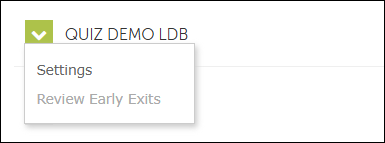
Step 7: In the settings area, choose the radio button next to “Require LockDown Browser for this exam”.
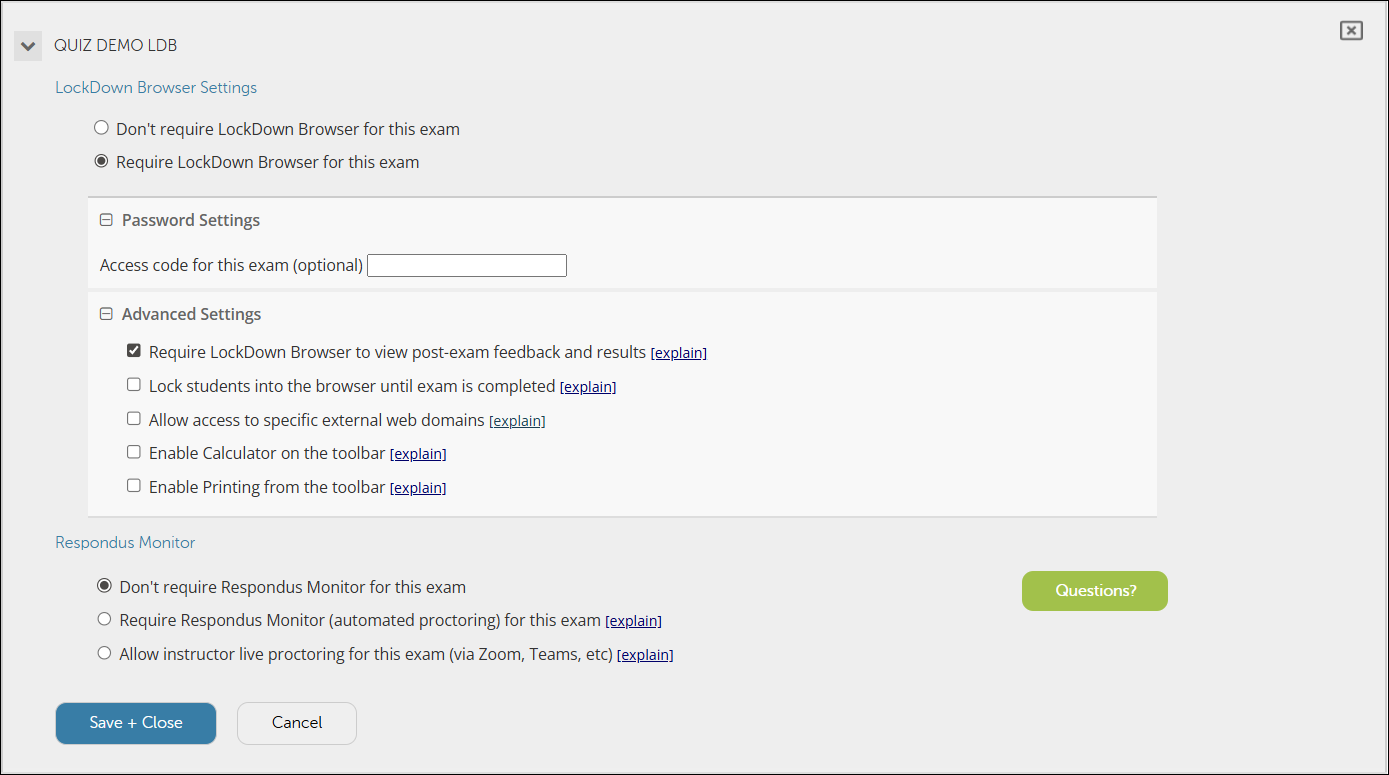
Step 8: Adjust the Advanced Settings to match the needs for your exam. In some cases, it might be necessary to permit students to access a specific website or a calculator.
Step 9: Under Respondus Monitor, this must be set to “Don’t require Respondus Monitor for this exam”.
Please Note: Respondus Monitor is not approved for in-person courses.
Step 10: Click the Save + Close button to save the quiz settings.
Respondus LockDown Browser FAQs
No. Respondus LockDown Browser should be used for assessments delivered in-class.
Respondus LockDown Browser prevents students from accessing websites, AI and materials on their computer while students are taking their assessment. Respondus LockDown Browser does not prevent analog cheating attempts (e.g. physical notes/”cheat-sheets”; looking at other students screens).
- The Office of Digital Learning (ODL) can assist you with the use of Respondus LockDown Browser and quiz creation in WebCampus. Email odl@unr.edu, call 775-682-6798 or stop by MIKC 205 for assistance.
- If you need assistance with Respondus tools for an online course, please contact NV Online.
Respondus Monitor is reserved for fully online courses and it not approved for use with in-person class by the Provost’s Office.
In certain, special circumstances, faculty can get approval for limited use of Respondus Monitor through the Provost or Vice Provost for Undergraduate Education.
Yes – all University-issued iPads come with the Respondus LockDown Browser app installed.