Adding YouTube videos to WebCampus
YouTube video can also be added to your WebCampus course wherever there is a Rich Text Editor (e.g. pages, discussions, quizzes, modules). Faculty should make sure the content that they use from YouTube is accurately captioned for accessibility. Contact Teaching & Learning Technologies for additional guidance about captioning.
When using YouTube content that you do not own, be cautious as the content could potentially be taken down without warning.
Step 1: Log in to WebCampus and browse to your course.
Step 2: Open/create the item (i.e. page, discussion, quiz etc.) where you want to add the YouTube video.
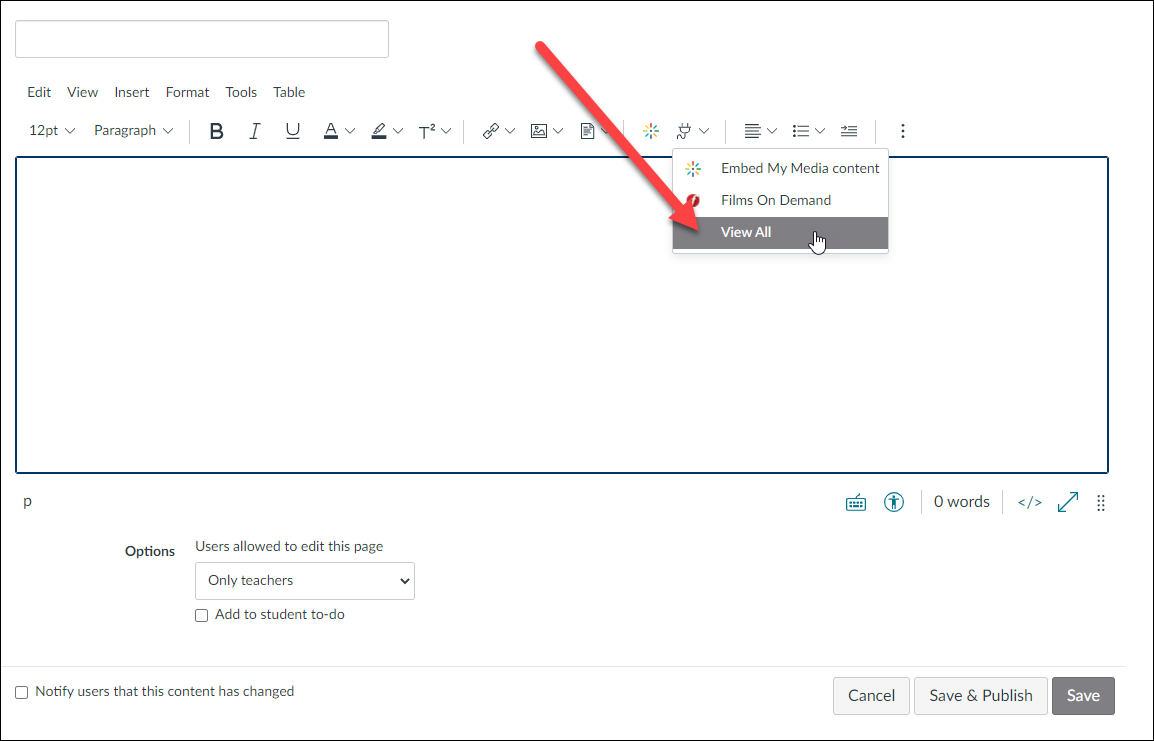
Step 3: In the rich text editor, click on the arrow next to the “plug” icon. Select “View All” from the drop-down menu.
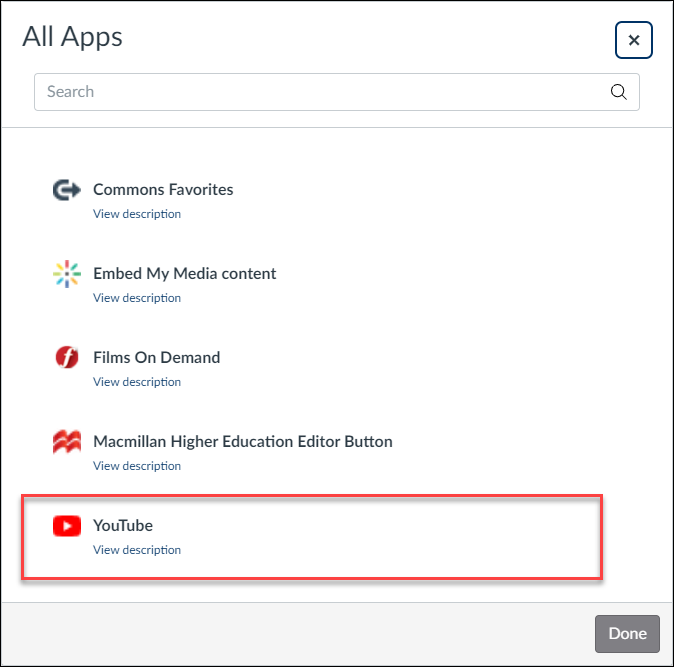
Step 4: In the window that opens, click on YouTube.
Step 5: In the next window, use the interface to search for the YouTube video that you would like to add.
Step 6: Once you have located the video in the search results, click the Embed button beside the video. (Clicking the arrow to the right of the Embed button will open a drop-down menu that allows you to select an embed size.)
Step 7: Your video will now show up in the Rich Text Editor. Click the Save/Save & Publish button as appropriate.
NOTE: You can also use the YouTube iframe embed code to embed the video via the HTML editor.